Cambridge IGCSE ICT 0417 · Topic 1: Types and components of computer systems
1.1 Hardware, software, and analogue and digital data
A computer system is hardware (the physical parts) running software (the programs).
physical parts you can touch
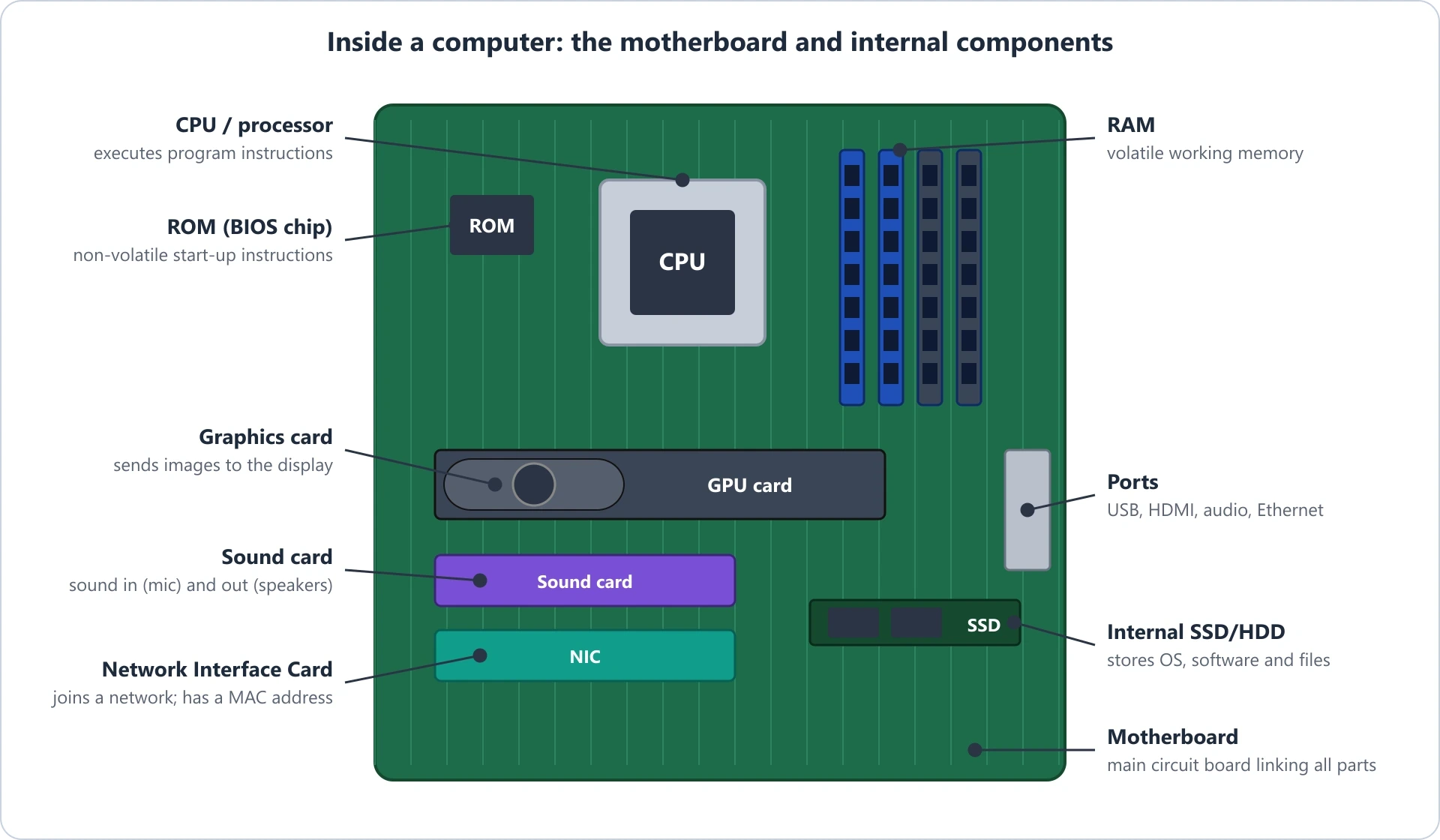
CPU / processor
Motherboard
RAM & ROM
Graphics, sound, network (NIC) cards
(peripherals)
Input devices
Output devices
External storage
programs (instructions)
helps the USER solve a task
helps the COMPUTER operate
A computer is only useful when hardware and software work together: software tells the hardware what to do.
The big picture: every computer system is made of hardware and software.
Hardware
Must know
- Hardware is the physical components of a computer system
- Internal components (CPU, processor, motherboard)
- Internal memory (RAM, ROM)
- Hardware components (graphics card, sound card, NIC, camera, internal/external storage devices, input and output devices)
Key definitionHardware consists of the physical components of a computer system — the parts you can see and touch. Each item of hardware has its own specific job, and hardware can be internal (inside the computer case) or external (connected to the outside).
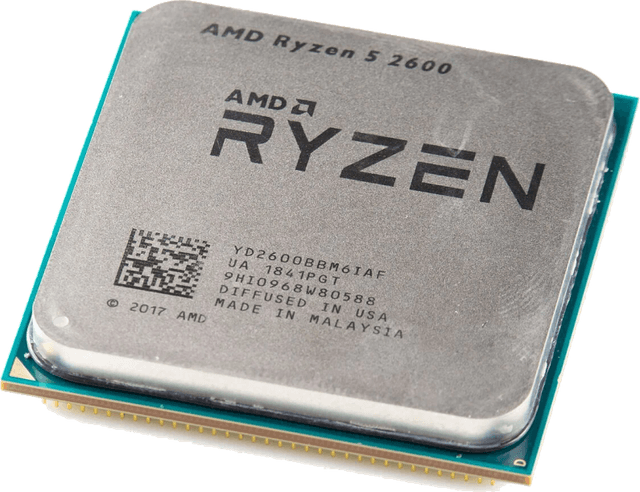
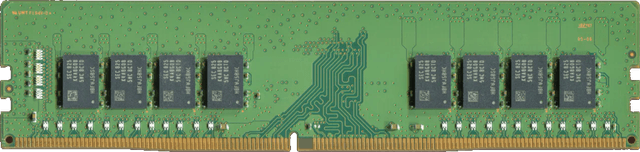
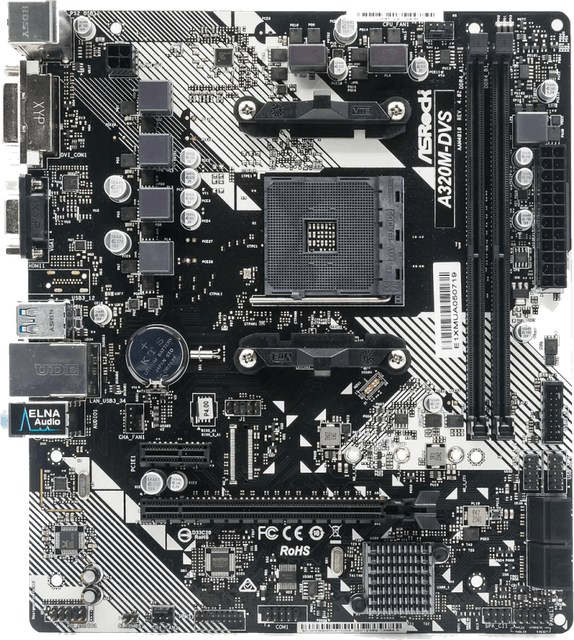
Hardware is any physical component of a computer system that you can touch. It is either internal (inside the case) or external (peripherals such as a keyboard, monitor or printer).
| Component | What it is and does |
|---|---|
| Motherboard | The main printed circuit board. It connects the CPU, memory and all other components so they can communicate, and has sockets and slots for expansion cards. |
| CPU / processor | Carries out (executes) the instructions of programs. On modern computers it is a single chip called a microprocessor. |
| RAM | Random access memory. Temporary, volatile memory that holds the data, programs and parts of the operating system currently in use. Can be read from and written to. |
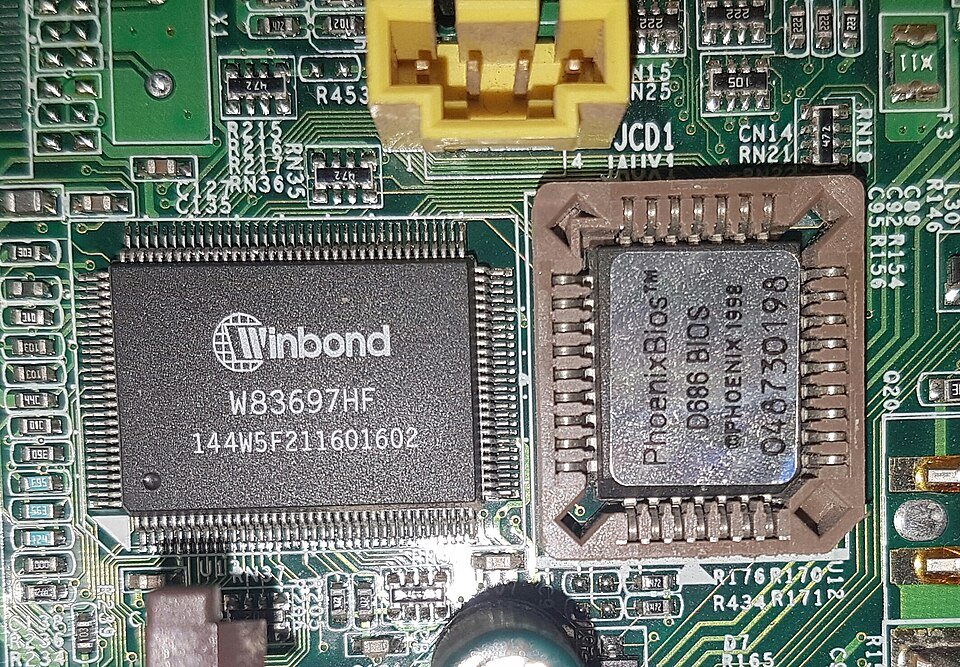
| ROM | Read-only memory. Permanent, non-volatile memory holding instructions needed at start-up (the BIOS/boot program). Can only be read. |
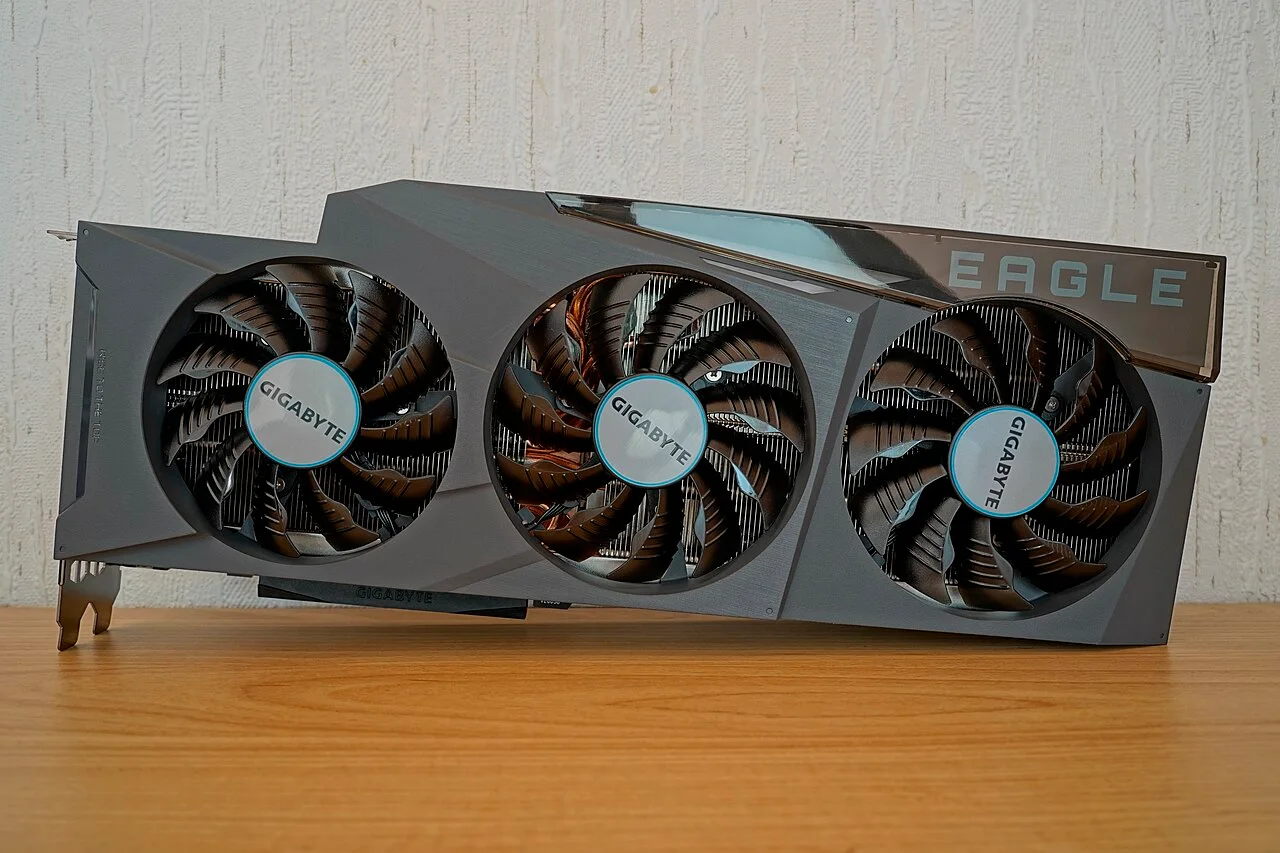
| Graphics card | Processes and sends graphical information to a display (monitor, TV, projector). Has its own processor, RAM and cooling (heat sink/fan). |
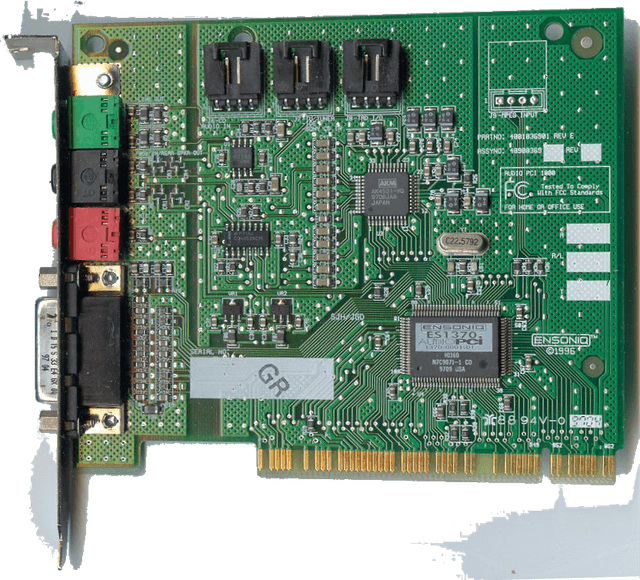
| Sound card | Lets the computer produce sound through speakers/headphones and record sound input from a microphone. |
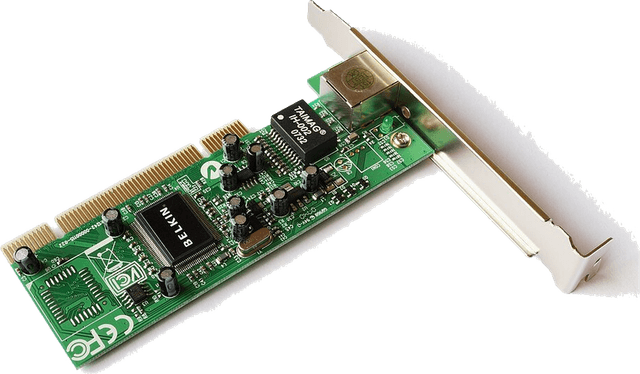
| Network Interface Card (NIC) | Allows a device to connect to a network, wired or wireless. Each NIC has a unique hard-coded MAC address. |
| Camera | Captures still images or video (built-in webcam or external). An input device. |
| Internal/external storage | Hard disk drive (HDD) or solid-state drive (SSD) holding the OS, software and files permanently. External versions plug in, for example by USB. |
| Input and output devices | Devices for entering data (keyboard, mouse) and presenting results (monitor, printer). See Topic 2. |
CPU (processor)
The 'brain' of the computer.
Carries out (executes) program instructions and does the calculations needed to process data.
Motherboard
The main circuit board.
Connects all the components together (CPU, memory, cards, storage) so they can communicate.
- A printed circuit board (PCB) found in all computers.
- Made from a sheet of non-conductive material (e.g. hard plastic) with thin layers of copper or aluminium printed on to form the circuits between components.
- Has sockets and slots to connect the CPU, memory, cards and other components.
RAM
Random access memory — internal memory.
Temporarily holds the data and programs currently in use. Volatile: contents are lost when power is off.
ROM
Read-only memory — internal memory.
Permanently stores the start-up (boot) instructions / BIOS. Non-volatile: contents are kept when power is off.
Graphics card
Processes images and video and sends them to the monitor.
Needed for high-quality graphics, gaming and video editing.
- Sends graphical information to a monitor, television or projector; it connects to the motherboard.
- Made up of a processing unit, a memory unit (mostly RAM), a cooling mechanism (usually a heat sink) and connections to the display.
Sound card
Lets the computer input, process and output sound.
Connects to speakers, headphones and microphones.
- Produces sound through speakers or headphones.
- Also lets the user record sound from a microphone and edit sound stored on a disk.
Network interface card (NIC)
Lets the computer connect to a network (and the internet).
Wired (cable) or wireless. Each NIC has a unique MAC address.
- Connects a computer – or another device such as a printer – to a network, wired or wireless.
- Its MAC address is hard-coded into the card when it is made.
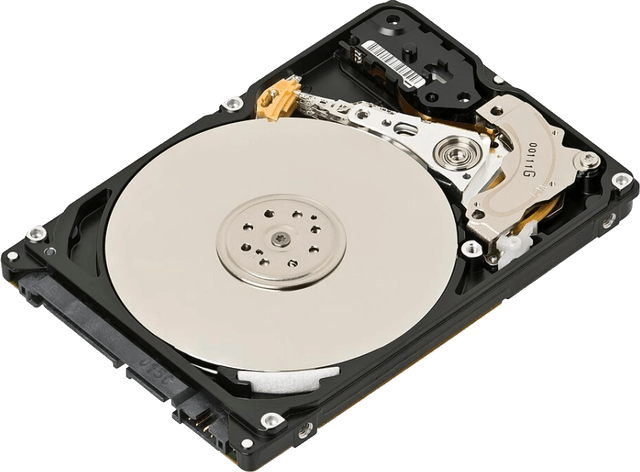
Internal hard disk drive (HDD)
Stores software and files permanently using spinning magnetic disks.
Large capacity (GB to TB) and cheap per GB.
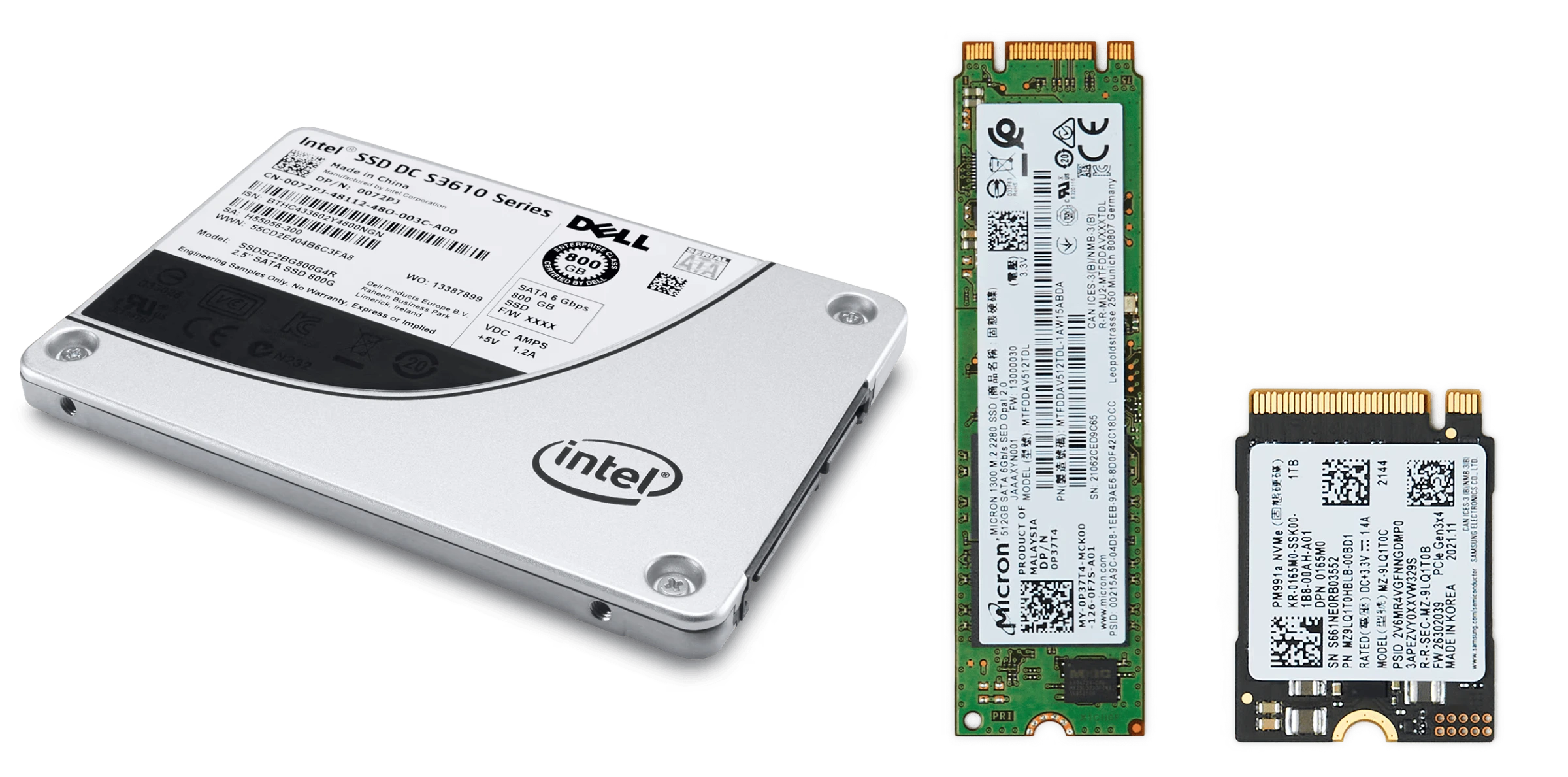
Solid-state drive (SSD)
Internal storage with no moving parts (flash memory).
Faster, quieter and more robust than an HDD.
RAM vs ROM at a glance
| Feature | RAM (random access memory) | ROM (read-only memory) |
|---|---|---|
| Volatile? | Volatile – data is lost when power is switched off | Non-volatile – data is kept when power is switched off |
| Read / write | Can be read from and written to | Can only be read from |
| What it stores | Data, files and the parts of programs / operating system currently in use | BIOS and other start-up (boot) instructions |
| Size | Usually larger; can be upgraded to improve performance | Usually small; not normally changed |
You will study RAM, ROM and the CPU in more depth in 1.2 The main components of computer systems.
External hardware devices (peripherals)
A peripheral is any external device connected to the computer. Peripherals are grouped by what they do:
INPUT DEVICES → send data INTO the computer
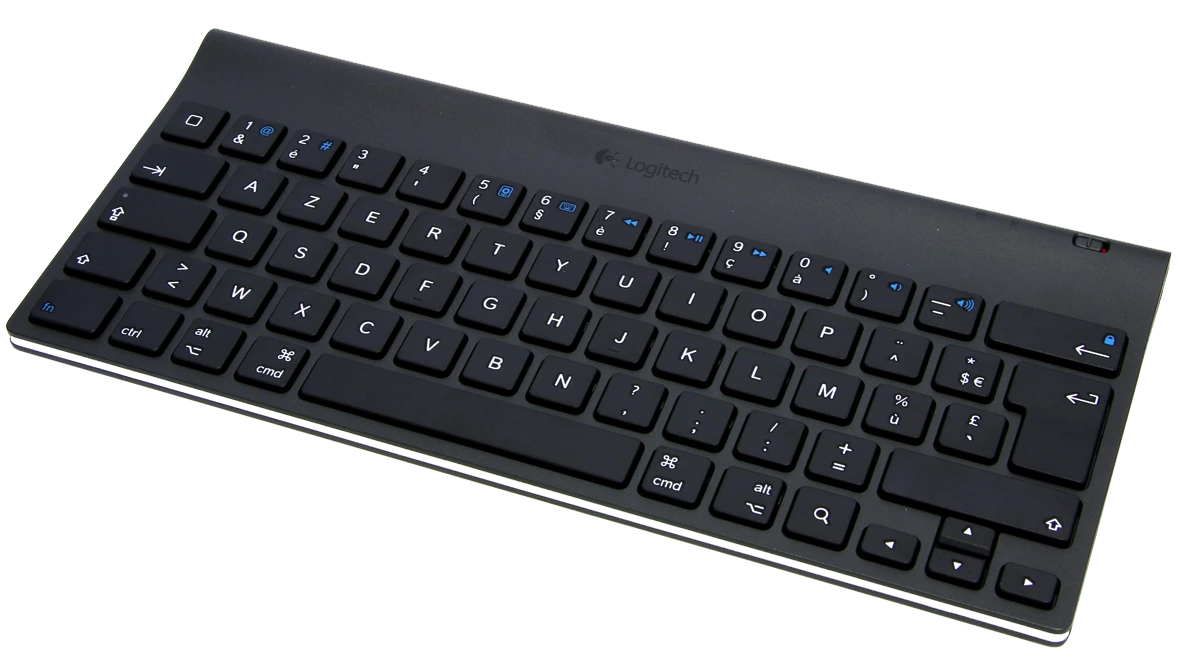
Keyboard
Type text and commands.

Mouse
Point, click and select on screen.
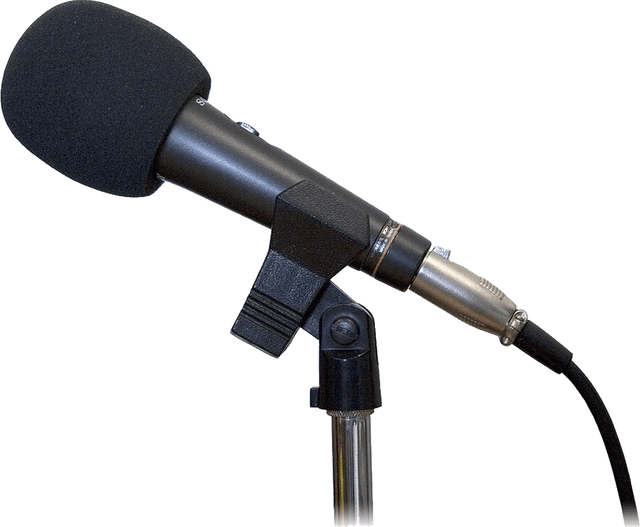
Microphone
Inputs sound / voice.
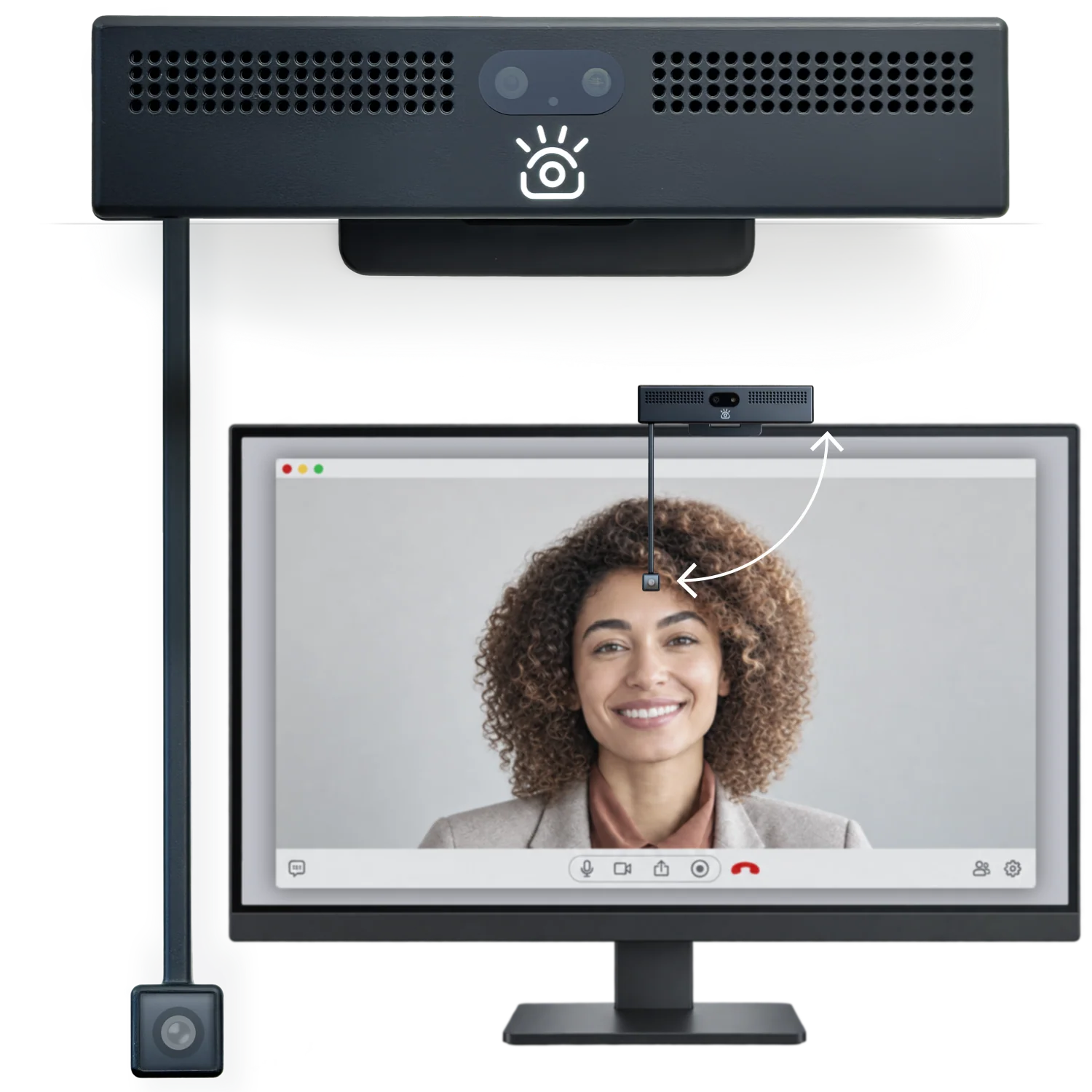
Camera / webcam
Captures images and video. Phones and laptops have built-in cameras.
OUTPUT DEVICES → show or give results FROM the computer
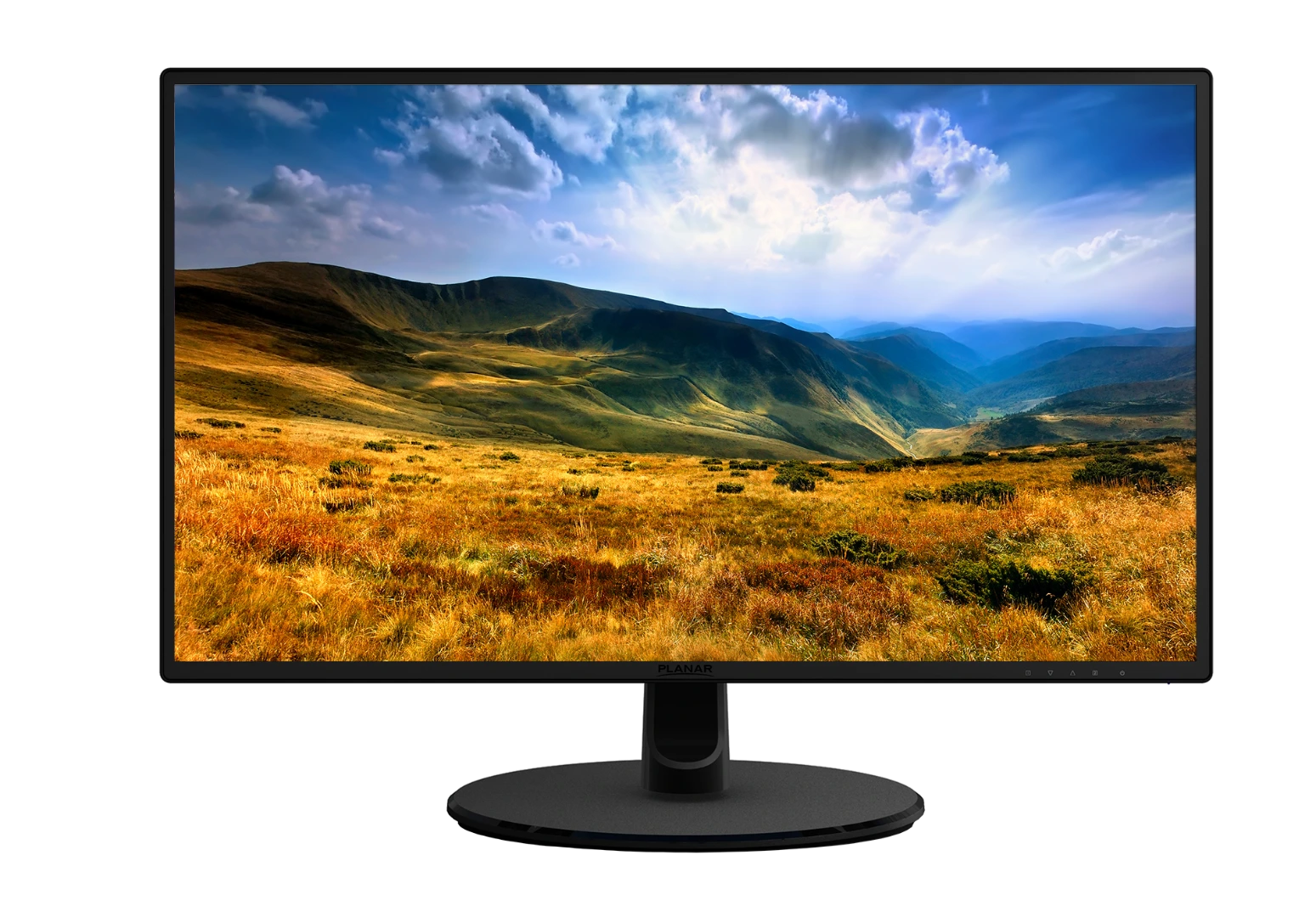
Monitor
Displays text, images and video (soft copy).

Printer
Produces a printed paper copy (hard copy).
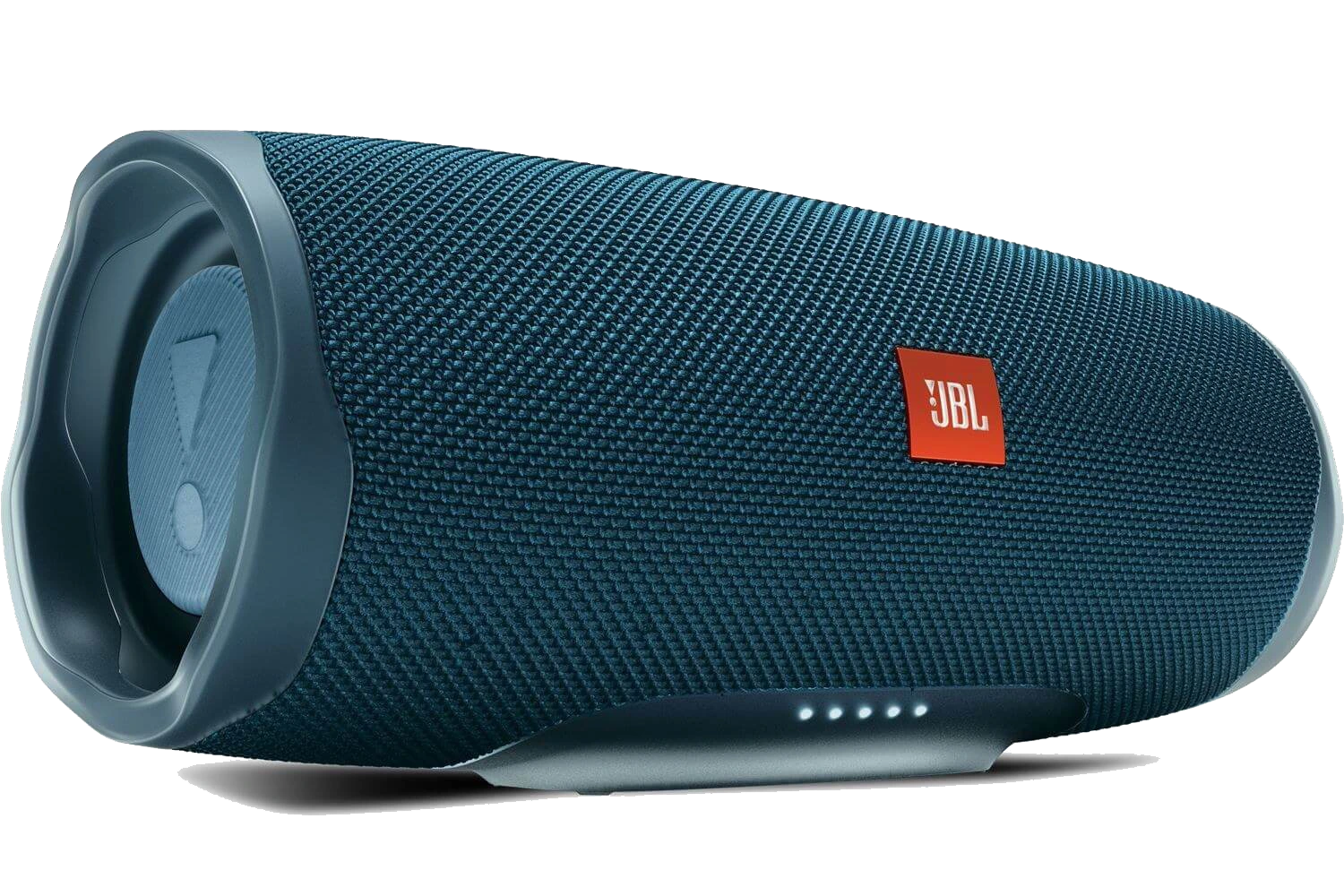
Speakers
Output sound, music and voice.
EXTERNAL STORAGE → keep, back up and move files

External hard disk drive
Portable, high-capacity storage — ideal for backups.

USB flash drive (pen drive)
Small and portable — easy to transfer files between computers.
Internal vs external hardware
| Internal hardware | External hardware (peripherals) | |
|---|---|---|
| Where? | Inside the computer case | Outside the case, connected by cable or wirelessly |
| Examples | CPU, motherboard, RAM, ROM, graphics card, sound card, NIC, internal HDD / SSD | Keyboard, mouse, microphone, monitor, printer, speakers, external HDD, USB flash drive |
| Purpose | Process, store and control data so the computer can work | Get data in (input), give results out (output) or store data externally |
Exam tip"processor" and "CPU" are the same thing in this syllabus. Always give a function when asked to describe a component, not just its name.
Exam tipCambridge gives no marks for brand names (e.g. Intel, Windows, Excel). Write the generic name: processor, operating system, spreadsheet software.
Software
Must know
- Software is programs for controlling the operation of a computer or processing electronic data
- Applications software solves a user's task
- Examples of applications software (word processing, spreadsheet, database management systems, control, measurement, applets and apps, video editing, graphics editing, audio editing, CAD)
- System software provides the services the computer needs to operate
- Examples of system software (compilers, linkers, device drivers, operating systems, utilities)
Key definitionSoftware are programs for controlling the operation of a computer or the processing of electronic data. A program is a set of instructions that tells the hardware what to do. Software is not a physical thing — but it is stored on physical media (e.g. a hard disk).
(services the USER needs)
(services the COMPUTER needs)
The two types of software and the examples you need to know.
| Applications software | System software | |
|---|---|---|
| Purpose | Provides the services that the user requires to solve a task | Provides the services that the computer requires to operate |
| Who it serves | The user (doing a job such as writing a letter or editing a photo) | The computer itself (running and managing the hardware) |
| Examples | Word processing, spreadsheet, DBMS, control, measurement, apps & applets, video / graphics / audio editing, CAD | Operating systems, device drivers, utilities, compilers, linkers |
| Remember | Runs on top of the operating system | Provides the platform that applications run on |
Applications software
Applications software lets the user complete specific tasks. Learn each type with one clear use:
| Type | What it is used for | Typical features / examples of use |
|---|---|---|
| Word processing | Creating and editing text documents – letters, reports, essays | Formatting text, spell check, inserting tables and images, find & replace, mail merge |
| Spreadsheet | Organising and calculating numerical data; modelling | Formulas and functions (SUM, AVERAGE, IF, LOOKUP), sorting, charts and graphs |
| Database management system (DBMS) | Storing and organising data in tables of records and fields | Searching with queries, sorting, producing reports |
| Control software | Controlling devices automatically, e.g. a greenhouse heater, traffic lights | Compares sensor readings with a pre-set value and decides what output to send |
| Measurement software | Taking readings from sensors, e.g. temperature, pressure, light | Records and stores readings at set intervals; used in weather stations and science experiments |
| Apps & applets | Apps – software for phones and tablets (games, banking, maps) | Applets – small programs that do one task inside another program, e.g. in a web browser |
| Video editing | Editing video footage | Cutting / trimming clips, transitions, adding audio, titles and filters |
| Graphics editing | Creating and editing images | Cropping, resizing, brightness / contrast, layers, filters |
| Audio editing | Recording and editing sound | Cutting, joining, fading, removing noise, changing volume |
| Computer-aided design (CAD) | Producing accurate 2D / 3D technical drawings | Designing buildings, cars, machine parts; 3D views and accurate measurements |
What does applications software look like?
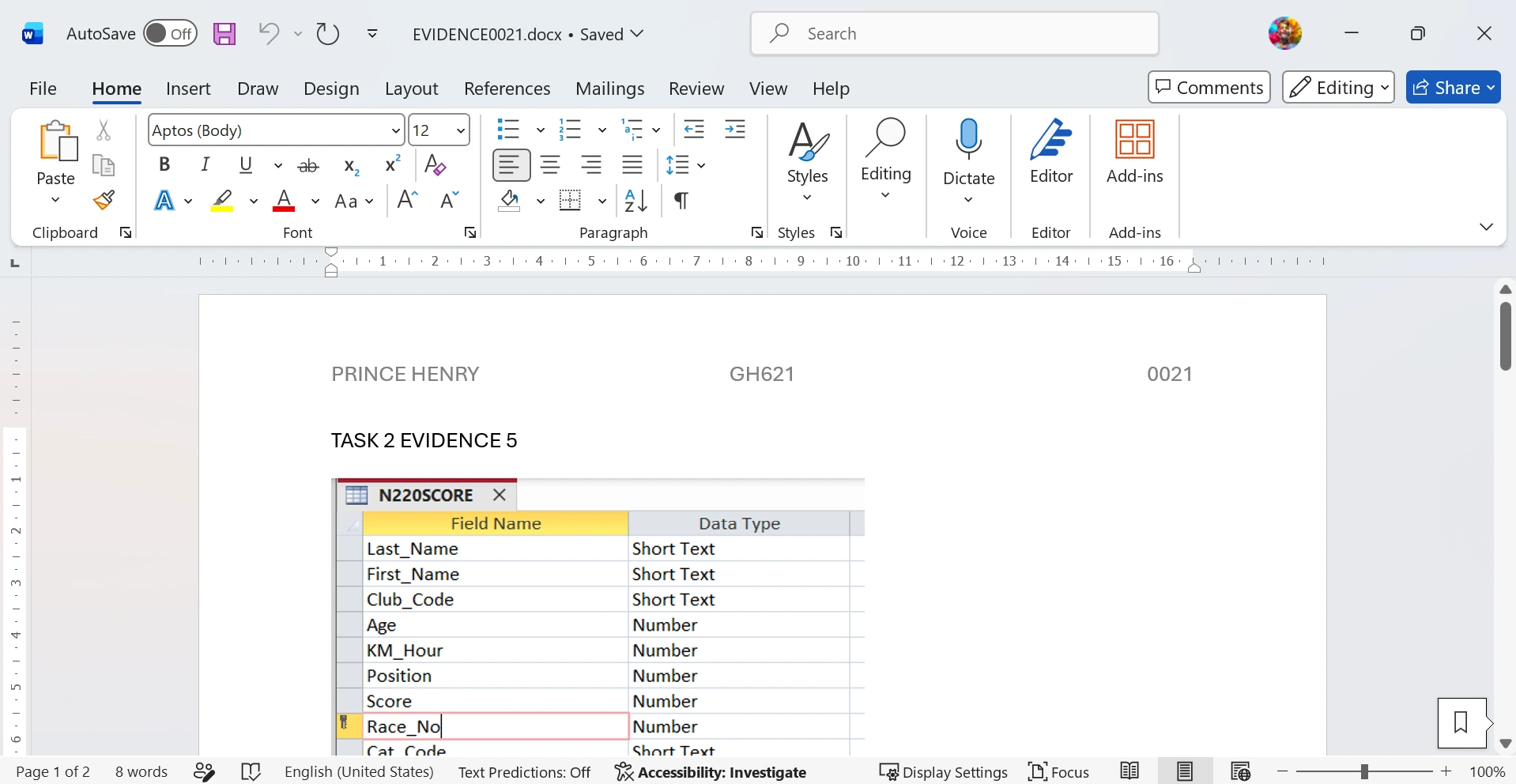
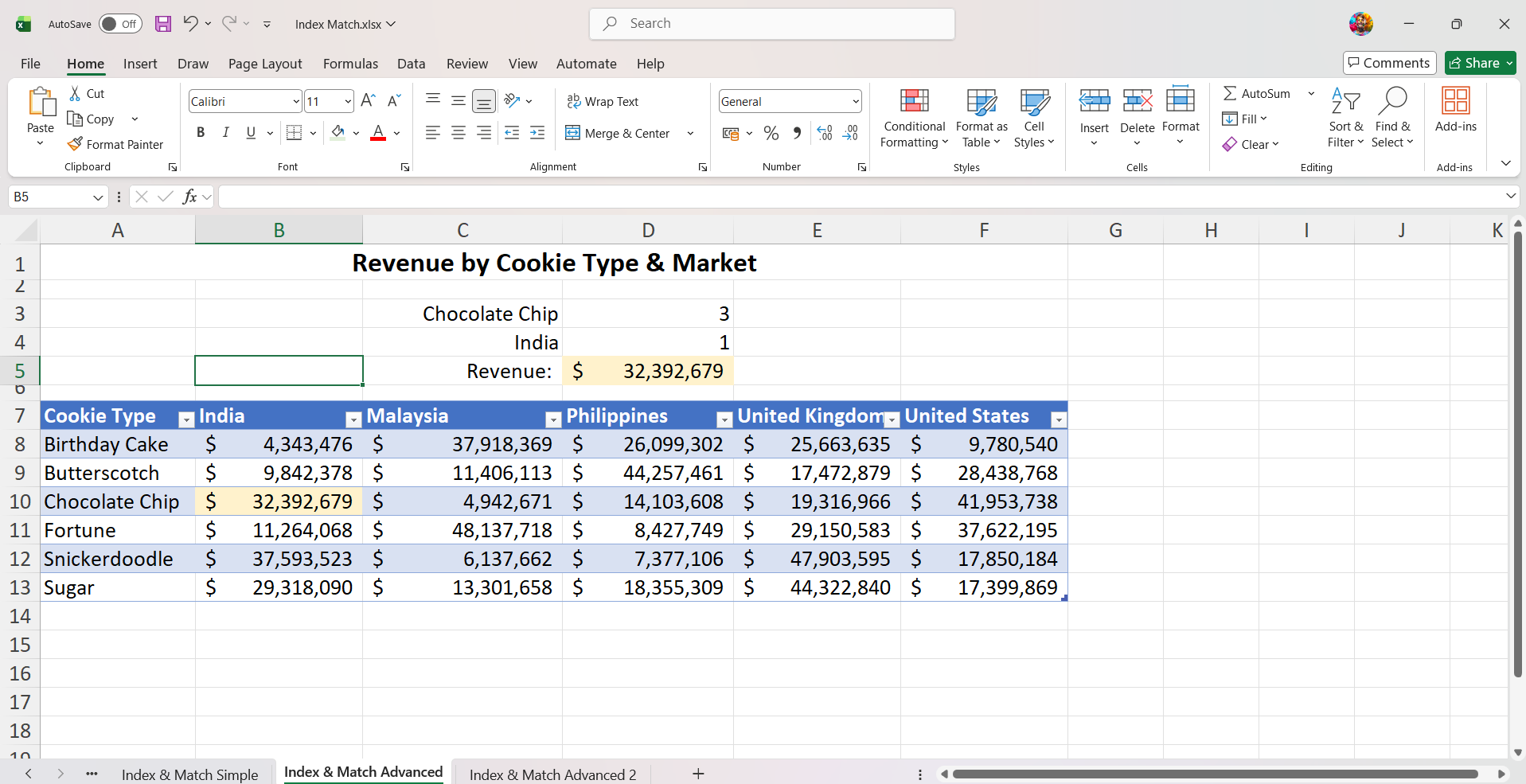
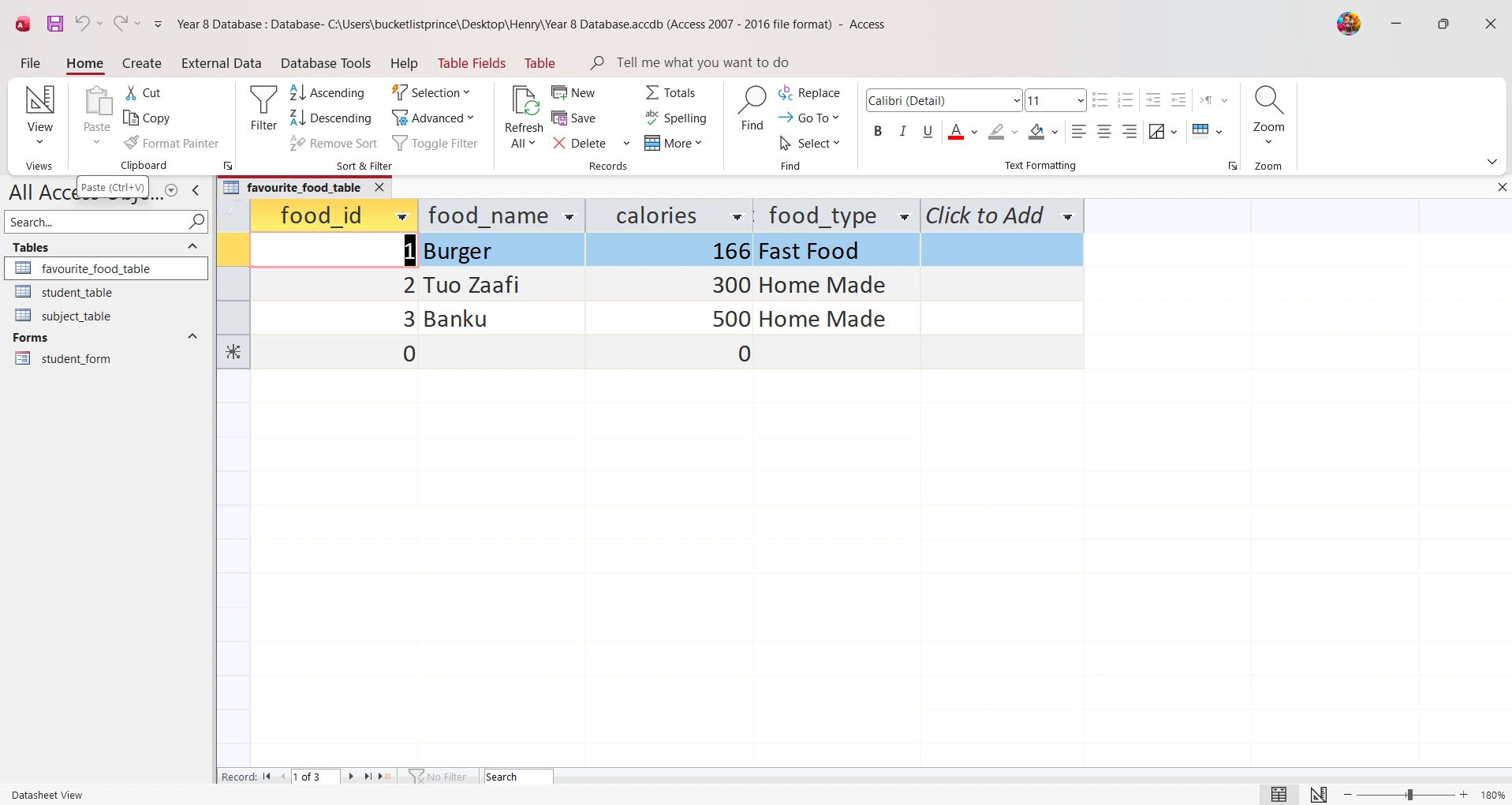
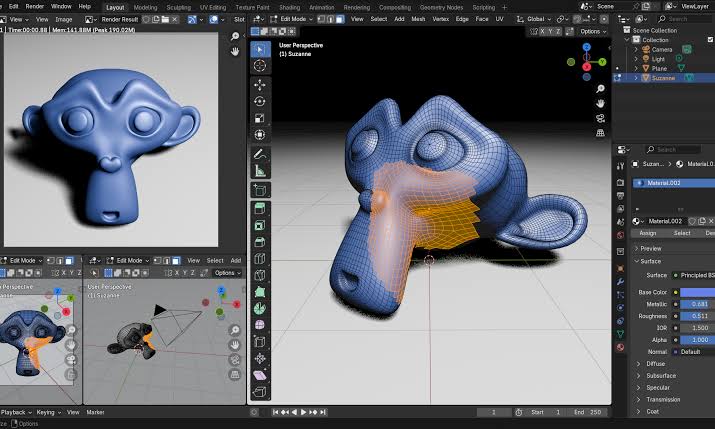
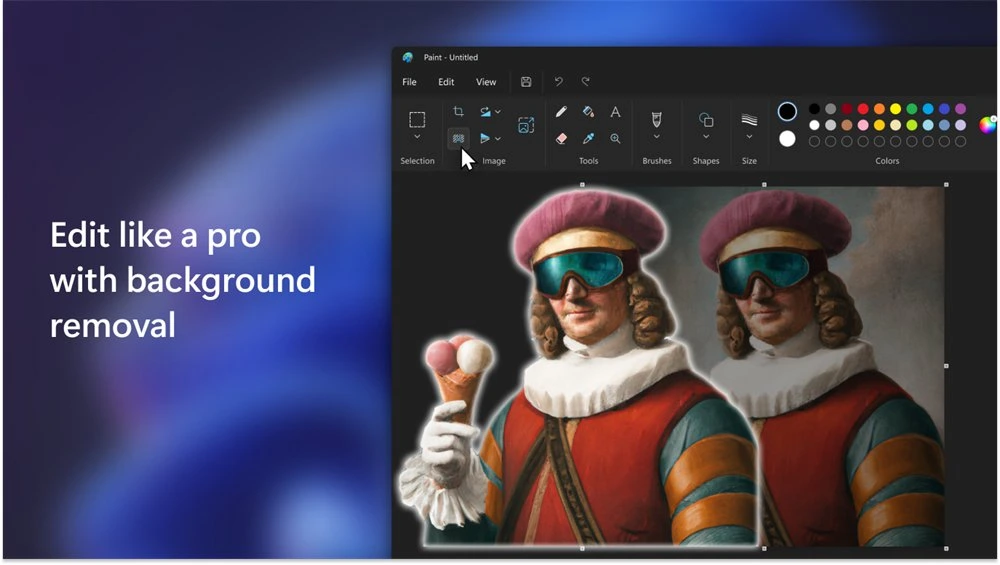

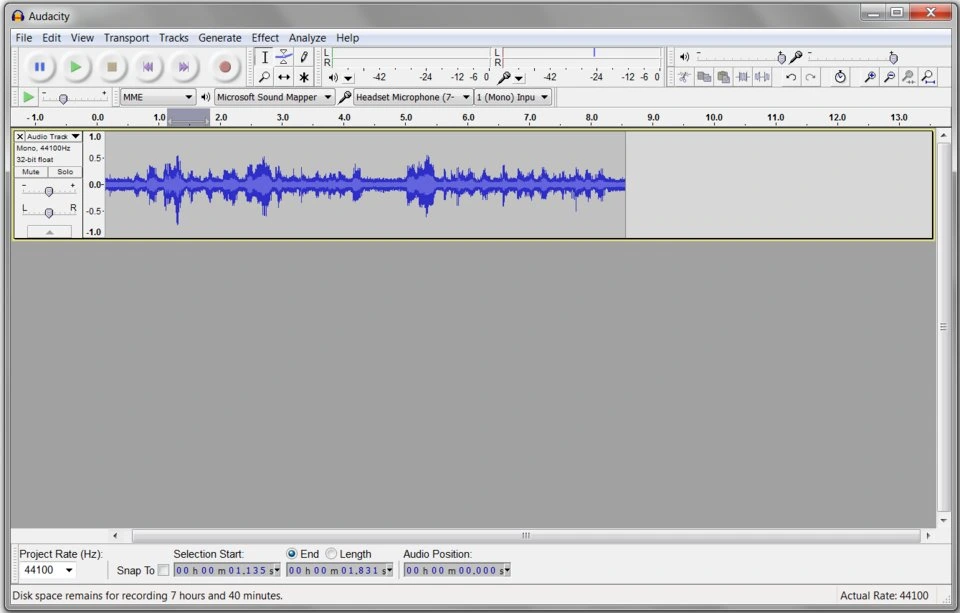
Screenshots show Microsoft Windows applications. In the exam always use the generic type (e.g. 'spreadsheet software'), never the product name.
More applications software features
- Word processing – also imports images into a structured page, checks spelling, offers a thesaurus and can translate text.
- Spreadsheet – cells are identified by column letter and row number (e.g. B6); used for modelling and 'what if' calculations.
- Applets – often embedded in a web page and run inside a browser. Apps were first made for phones and downloaded from an app store.
- Audio editing – change the length, start and stop time and volume of a track, fade in / out, combine tracks, reduce noise, convert between audio file formats and make loops or ringtones.
Bitmap and vector graphics editing
- Bitmap images are made of pixels, each holding colour and brightness. Bitmap editors change the pixels.
- Vector images are stored as lines, curves, shapes and text. Vector editors change these objects instead of pixels, so the image can be resized without losing quality.
- The editing software is chosen to match the format of the original image.
Computer-aided design (CAD)
- Produces 2D or 3D designs that can be rotated to any angle and show full dimensions.
- Can be used to estimate manufacturing costs of the final product and predict structural problems before it is built.
More system software detail
- Compiler – the original program is the source code; the compiled version is the object code. Once compiled, the machine code can be run again and again without recompiling. High-level languages include Python, Java and C++.
- Linker (link editor) – programmers write a large program as separate modules; the linker combines them into the final program.
- Device driver – when a device is plugged in, the operating system looks for its driver and shows an error message if none is found.
- Utilities also include anti-spyware, disk repair, screensavers and security software.
Analogue data
- Between any two analogue values there are an infinite number of other values; digital data can only take exact values.
Software is the programs that control the operation of a computer or process electronic data. There are two types.
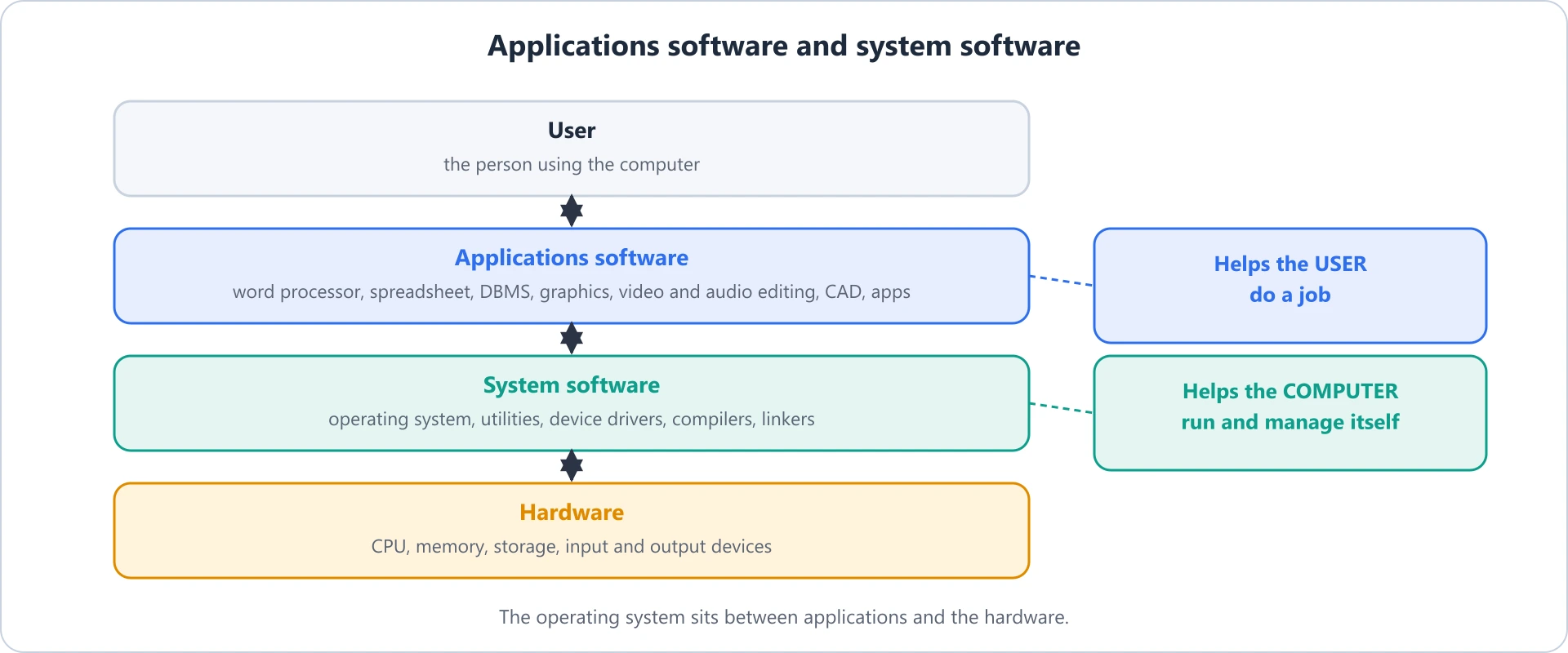
Applications software provides the services the user needs to carry out a task.
| Application | Typical use |
|---|---|
| Word processing | Create, edit, format and print text documents such as letters and reports. Includes spell check, copy/paste, importing images. |
| Spreadsheet | Organise and calculate numerical data in a grid of cells using formulas; produce graphs; carry out "what if" modelling. |
| Database management system (DBMS) | Store data in tables of records and fields; add, edit and delete records; run queries; produce reports. |
| Control software | Uses sensor data to control a process, for example opening a valve or switching on a heater. |
| Measurement software | Uses sensors to measure and record physical quantities such as temperature or pH over time. |
| Apps and applets | Apps perform a substantial task (banking, streaming, social media), often downloaded from an app store. Applets are small programs that perform a single task, often embedded in a web page and run in a browser. |
| Video editing | Rearrange, add or remove clips; add titles, transitions, colour correction and sound. |
| Graphics editing | Change bitmap images (made of pixels) or vector images (made of lines, curves and shapes). |
| Audio editing | Change track length, start/stop time, volume; fade in/out; combine tracks; reduce noise; convert file formats. |
| Computer aided design (CAD) | Create and modify 2D/3D technical drawings that can be rotated, dimensioned, costed and tested for structural problems. |
System software provides the services the computer needs to operate and acts as a platform for applications.
| System software | What it does |
|---|---|
| Compiler | Translates a whole program written in a high-level language (source code) into machine code (object code) that the computer can run. |
| Linker | Combines several object files/modules produced by a compiler into one program that can run. |
| Device driver | Lets a hardware device (printer, mouse, memory stick) communicate with the operating system. |
| Operating system | Manages the computer: input/output, loading and running programs, memory, files, security, errors and the user interface. |
| Utilities | Programs that maintain the computer: anti-virus, anti-spyware, backup, disk repair, file management, security, screensavers, disk defragmenter. |
(written by a programmer)
translates into machine code
Object file 2
Library / module
combines the object files
How a compiler and a linker work together to make a program you can run.
Exam tipif the software helps the user do a job, it is applications software. If it helps the computer run, it is system software.
Analogue and digital data
Must know
- Characteristics of analogue and digital data
- Differences between them
- The need to convert analogue to digital so it can be processed, and digital to analogue so it can be used
| Analogue data | Digital data | |
|---|---|---|
| Values | Continuous; changes smoothly with an infinite number of values in a range | Discrete; only set values, stored in binary (0s and 1s) |
| Examples | Temperature, sound waves, light intensity, the human voice | Data stored and processed inside a computer |
| Processing | Cannot be processed directly by a computer | Can be processed by a computer |
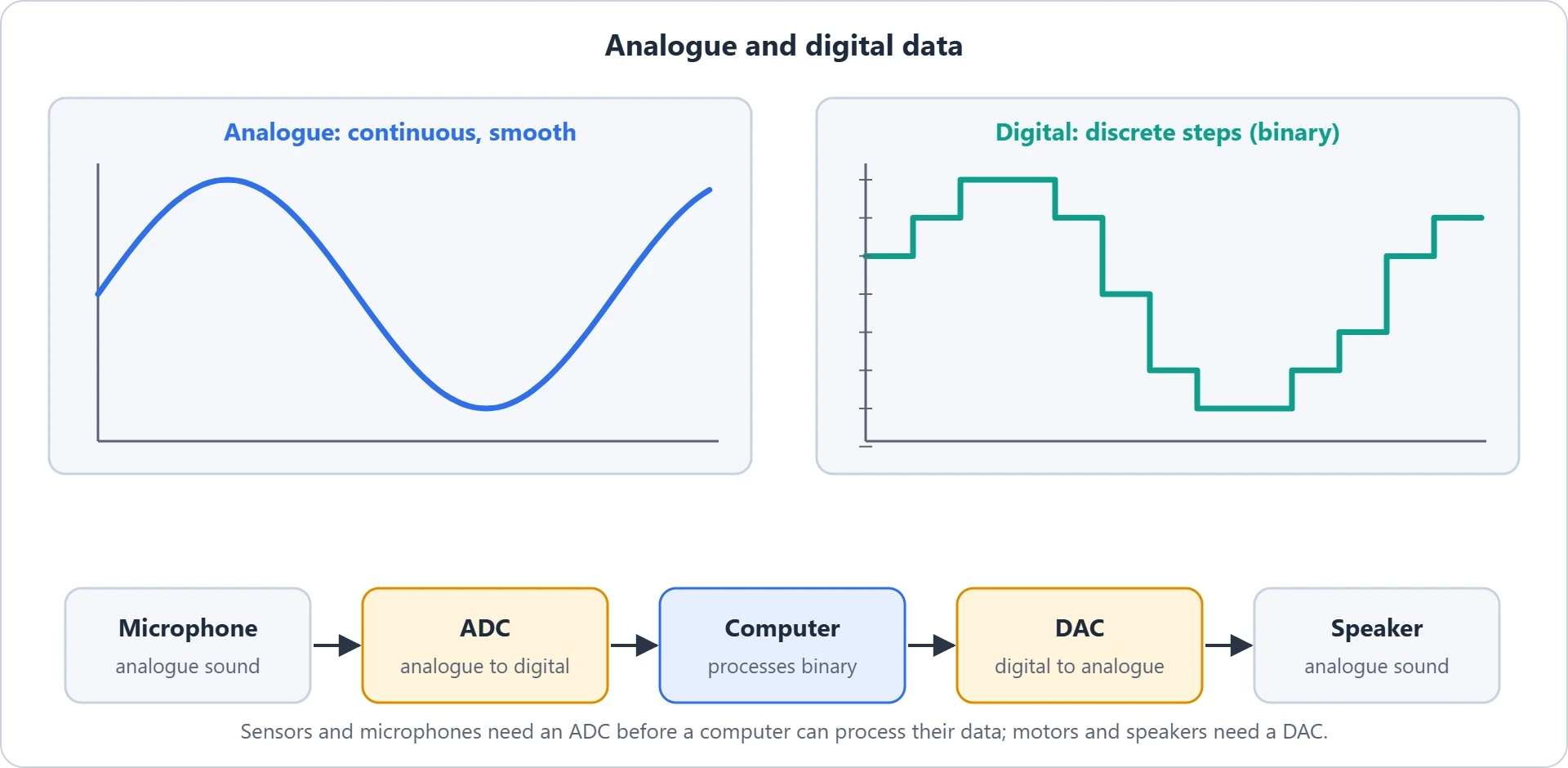
Why convert? Computers only process digital (binary) data, so analogue data from sensors or a microphone must go through an analogue-to-digital converter (ADC) before the computer can process it. When a computer controls a real-world device such as a motor or speaker, its digital output must go through a digital-to-analogue converter (DAC) so the device can use it.
ANALOGUE data — continuous
can take ANY value in a range (e.g. sound, temperature)
DIGITAL data — discrete
only set values, stored in binary (0s and 1s)
Analogue data changes smoothly; digital data jumps between set values.
analogue → digital
digital → analogue
Converting data in a control system. Example: a greenhouse – the sensor's analogue reading is converted so the computer can process it; the computer's digital output is converted back so it can control the heater.
Exam corner
Common mistakes to avoid
- Saying hardware is 'the computer' – it is the physical components of a computer system.
- Calling software 'apps' only – software is programs / instructions, of two types: applications and system.
- Mixing up the purposes: applications software → the user's task; system software → running the computer.
- Writing brand names (Windows, Word, Photoshop) – these get no marks.
- Saying RAM stores data permanently – RAM is volatile; ROM is non-volatile.
Key words
| Key word | Meaning |
|---|---|
| Hardware | The physical parts of a computer system that you can touch |
| Software | Programs that control the computer or process data |
| Applications software | Software that helps the user do a task, e.g. a word processor |
| System software | Software that runs and manages the computer, e.g. the operating system |
| Analogue data | Data that changes continuously, e.g. temperature or sound |
| Digital data | Data stored as discrete values (binary 0s and 1s) |
| ADC | Analogue-to-digital converter: changes analogue signals into digital data |
| DAC | Digital-to-analogue converter: changes digital data into an analogue signal |
| Peripheral | An external device connected to a computer (input, output or storage) |
| Volatile | Memory that loses its contents when the power is switched off (e.g. RAM) |
| Device driver | Software that allows the operating system to communicate with a hardware device |
| Utility | Software that helps to maintain the computer, e.g. anti-virus, backup |
| Compiler / Linker | Compiler: translates source code into machine code. Linker: combines object files into one program |
| ADC / DAC | Converters: analogue-to-digital (for processing) and digital-to-analogue (for controlling devices) |
| Bitmap image | An image made of pixels, each storing a colour |
| Vector image | An image stored as lines, curves and shapes that can be resized without losing quality |
| Source code / object code | The program as written by the programmer / the compiled machine-code version |
Microsoft product screenshots used with permission from Microsoft. Other photographs and screenshots are from Wikimedia Commons, used under their free licences: CPU: “2023 Intel Core i7 12700KF (5).jpg” by Jacek Halicki, CC BY-SA 4.0; Motherboard: “2023 Płyta główna ASRock A320M-DVS.jpg” by Jacek Halicki, CC BY-SA 4.0; RAM: “RAM Module (SDRAM-DDR4).jpg” by ElooKoN, CC BY-SA 4.0; ROM / BIOS chip: “PhoenixBIOS chip with Winbond W83697HF IO Chip.jpg” by TheStriker, CC BY-SA 4.0; Graphics card: “ASUS GTX-650 Ti TOP Cu-II PCI Express 3.0 x16 graphics card.jpg” by Dsimic, CC BY-SA 3.0; Sound card: “Audiopci.jpg” by Swaaye (English Wikipedia), CC BY-SA 2.5; Network interface card: “GB Network PCI Card.jpg” by Harke, Public domain; Hard disk drive: “Laptop-hard-drive-exposed.jpg” by Evan-Amos, CC BY-SA 3.0; Solid-state drive: “Samsung 870 QVO 8TB SATA 2,5 Zoll Internes Solid State Drive (SSD)” by PantheraLeo1359531, CC BY 4.0; Keyboard: “Computer keyboard US.svg” by Wikimedia Commons contributors, Public domain; Mouse: “Wheel mouse.JPG” by Qurren, CC BY-SA 3.0; Microphone: “Blue Snowflake USB microphone.jpg” by Marie-Lan Nguyen, CC BY 2.5; Webcam: “USB webcam for PC.jpg” by WrS.tm.pl, CC0; Monitor: “EIZO Foris FG2421 VGA computer monitor displaying test pattern.png” by Lucasbosch, CC BY-SA 4.0; Printer: “Epson-inkjet-printer.jpg” by English Wikipedia contributor, CC BY-SA 3.0; Speakers: “Logitech-usb-speakers.jpg” by Evan-Amos, Public domain; External hard drive: “Toshiba 1 TB External USB Hard Drive.jpg” by Editor182, Public domain; USB flash drive: “Kingston Technology DataTraveler G4 USB flash drive USB 3.0 32 Gb.jpg” by Dmitry Makeev, CC BY-SA 4.0; Audio editing: “Audacity screenshot on Windows 7.png” by Igor2, CC BY-SA 4.0; CAD: “AutoCad интерфейсі.png” by Siqyrcy, CC BY-SA 4.0. Diagrams were drawn for Learning with Henry.
Photos from Wikimedia Commons, used under their free licences. CPU (processor): “AMD Ryzen 5 2600 (39851733273)” by Fritzchens Fritz, CC0; RAM module: “16 GiB-DDR4-RAM-Riegel RAM019FIX Small Crop 90 PCNT” by PantheraLeo1359531, CC BY 4.0; Motherboard: “2023 Płyta główna ASRock A320M-DVS” by Jacek Halicki, CC BY-SA 4.0; Graphics card: “Gigabyte GeForce RTX 3090 Eagle OC 24G, 24576 MiB GDDR6X Front 20201114 DSC5880” by PantheraLeo1359531, CC BY 4.0.